
Understanding File Sharing Risks & How To Mitigate
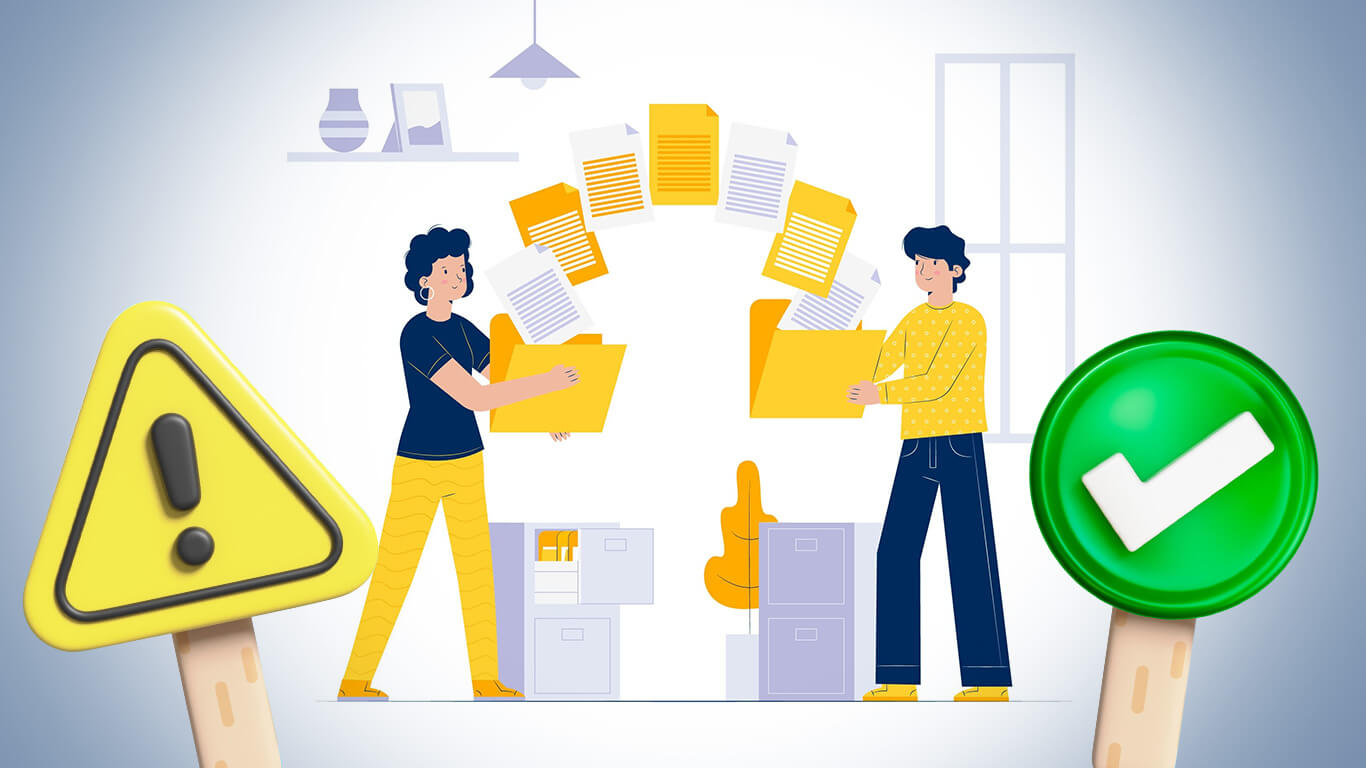
File sharing keeps teams connected and makes work move faster. But file sharing comes with its own security risks that can result in loss of data, malware, and other potential problems. Understanding these risks will help your business know what to do and minimize potential risks.
The Risks Associated with File Sharing
Tools like Google Drive, OneDrive, Dropbox, or Teams are commonly used in any company. They usually do their job, and they come with their own security and privacy policies. But the problem is how they’re being used.
Shortcuts like “share with everyone,” saving files to personal drives, or sending documents over public Wi-Fi seem harmless at first. But these bad habits will create weak spots that will add up. So, knowing these vulnerabilities makes it easier to correct them.
Security Risks: When Access Goes Too Far
One of the biggest file-sharing problems is excessive access. Too many people can open, edit, or download files they don’t actually need. That’s how data leaks happen. It’s not always from hackers, but from everyday habits.
Hidden risks to watch for:
- Open links shared publicly and forgotten. Adding passwords or expiration dates can help.
- Generic access groups like “Everyone” in your file-sharing system.
- Sensitive files sent as unencrypted email attachments.
- Employees storing business files on personal devices.
You also need to consider external threats and internal risks. External threats like malware or phishing can come from using public networks or transfers that are unsecured. Internal risks, meanwhile, are those that come from misuse or oversharing.
How to fix it:
- Review folder permissions regularly, especially in HR, Finance, and Legal.
- Set link expiration dates and remove old access.
- Train your team to spot phishing and unsafe sharing habits.
Storage Risks: Scattered Files and Inconsistent Structure
A messy file system makes life harder for everyone. When documents are saved in random folders or personal drives, it’s easy to lose track of the latest version and who has access to it.
You know your file system is a disaster when:
- You’ve got five “final” versions of the same file scattered everywhere like digital confetti.
- Critical documents are sitting on someone’s laptop instead of in shared storage where they actually belong.
- Your folders follow no structure, no logic, and definitely no naming standards. It’s chaos with extra steps.
Even the most secure tools can’t save you if your storage of files looks like a junk drawer. And AI assistants like Microsoft Copilot only shine when your data isn’t a hot mess.
How to fix it:
- Create clear rules for naming, versioning, and storing files.
- Move everything to managed cloud systems like SharePoint or Google Drive.
- Retire old tools that cause confusion or duplication.
Access Friction: When Security Slows Down Productivity
When it’s too hard to access what people need, they’ll get creative in all the wrong ways like saving files locally, using never-heard sharing apps, and basically inventing their own workflows. And that’s exactly how “shadow IT” sneaks in.
Here are realistic solutions an actually organized organization would use to manage file access without wrecking productivity:
- Pre-built access templates for each role
Instead of manually granting permissions, HR or IT selects a pre-made “role profile” (e.g., Sales Manager, Content Editor, Finance Associate) that automatically assigns the right folders, apps, and tools in seconds. - Automatic lifecycle access management
When someone changes departments, their old access is automatically revoked and the new one kicks in and no waiting for IT, no forgotten permissions lingering in the background. - Project-based access that auto-expires
Temporary access for cross-functional projects is set with a built-in expiration date. When the project ends, permissions vanish and no cleanup is required. - Real-time access request approvals inside chat tools
Need access to a specific folder? Request it in Slack or Teams and managers approve it in one click. - Search-first file systems with metadata tagging
Well-tagged files (owner, department, project, date) make search faster than browsing folders. Employees don’t waste time figuring out “where stuff should be.” - Segmentation by sensitivity, not hierarchy
Instead of locking everything behind “Senior Only” barriers, access is grouped by data sensitivity such as public, internal, confidential, restricted. People get what they need without doors slamming shut everywhere. - Remote access with conditional policies
Employees can work from anywhere, but access adjusts automatically based on device health, location, or login behavior. - Self-serve knowledge base with “where to save what” rules
A short, clear playbook that spells out exactly which folders to use for drafts, final files, archives, and shared content so no one invents their own system. - Quarterly access audits that take 15 minutes
Managers get a simple list of who has access to what and remove anything unnecessary. No Excel nightmares, no security risks left to rot. - Cloud platforms with activity trails
Tools like SharePoint and Drive show version history, who edited what, and when. So restoring or tracking changes takes one click, not detective work.
Compliance and Legal Risks: The Hidden Price of Oversharing
Legal and compliance risks remain the part of cybersecurity everyone pretends to understand until something breaks. Certain documents require actual procedures when you handle or transfer them, but one wrong move and you are suddenly starring in your own compliance incident. Send an unencrypted file or grant access to someone who should not even be on the list and you can trigger regulations from HIPAA, GDPR, and every watchdog that loves paperwork. This is the kind of mistake that invites lawsuits and erodes trust faster than any breach headline.
Stay compliant by:
- Using file sharing tools with encryption and audit logs that actually show what happened.
- Monitoring file activity so suspicious behavior does not slip through.
- Allowing external access only for verified clients and partners.
Simplifying Your File Sharing Environment
Most businesses use too many tools for the same job. Files end up scattered across Teams, Dropbox, Slack, and Drive, which creates confusion and unnecessary risk.
Nice and simple. Nine steps you can start doing today to simplify file sharing while keeping security tight (without making everyone cry):
- Run a quick inventory — map where files actually live (cloud, laptops, external drives). Ten minutes of effort, huge payoff.
- Pick one primary platform — choose SharePoint, Google Drive, or similar and make it the source of truth. No more “also on my desktop.”
- Assign owners — every folder or business area gets a named owner responsible for access and cleanup. Someone accountable beats vague blame.
- Create role-based access templates — build permission sets for common roles (editor, viewer, contractor) and apply them, don’t wing it.
- Standardize naming and versioning rules — one short rule sheet: who, what, date, version. Stick it in the onboarding doc.
- Limit external sharing — default to no external access; allow exceptions only for verified partners and log everything.
- Enable encryption and DLP — enforce encryption in transit and at rest, and set simple data loss prevention rules for sensitive file types.
- Automate lifecycle and expirations — temporary project access should auto-expire; archive old files automatically after a set period.
- Train fast, train often — two quick demos for new hires and a 5-minute refresher for teams every quarter. Make it painless.
Shortcut checklist: inventory, choose one platform, assign owners, templates, naming rules, restrict externals, encryption + DLP, automate lifecycles, train.
Make Sharing Files Easier
Most of the risks associated with file sharing come from bad habits. This is why it’s important to address and fix them, to lessen the risks of file sharing in the workplace.
It’s also not hard to do so. Just place the right structure, provide clear and accessible rules, and be constantly aware of your team’s habits and they can share files with minimal risks.
Well, pack it up, Michigan. The right to privacy on the internet is on life support again—and this time, the hit comes from your own lawmakers.

AI now powers 80% of ransomware attacks, making them faster, stealthier, and harder to stop. Learn what this means and how to protect yourself today.